Setting the log storage folder to full permissions for all users (XP Pro)
Step 1:
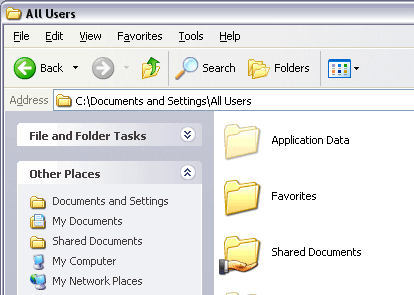
Navigate to your log storage folder - default is c:\documents and settings\all users\application data\

Step 2:
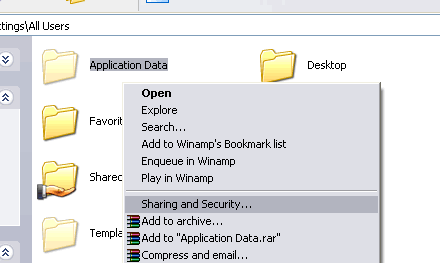
Right click on the log storage folder and select "Sharing and Security..."

Step 3:
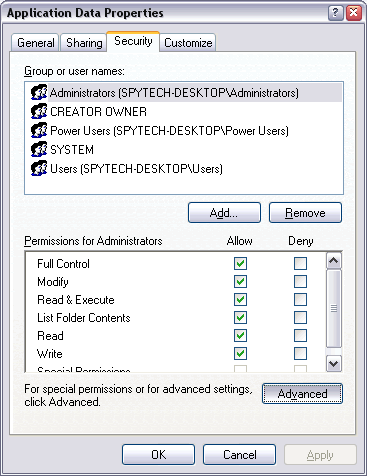
You will see the following window. Click on "Advanced" to goto the next step. If you do not see these options then please read the note at the bottom of this how to.

Step 4:
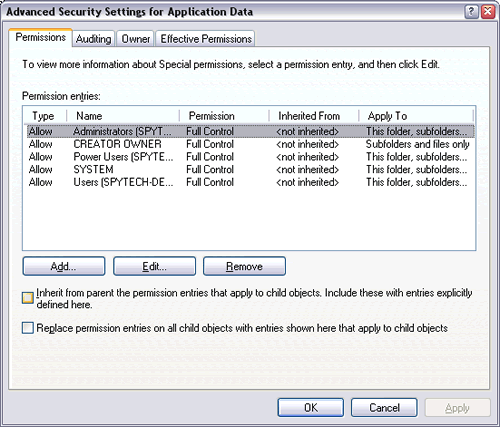
You will see the following window. Click on a permission entry and then "Edit". This will take you to step 5.
Step 5:
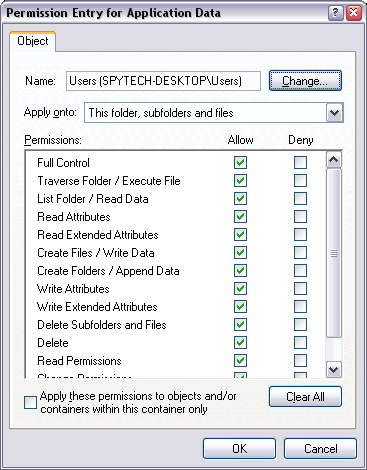
In the permission entry properties window (shown below) make sure everything is set to "Allow". Also ensure that the "Apply onto" field has "This folder, subfolders, and files" selected. Click "OK" to save any changes. Go back to step 4 and repeat for the rest of the permission entries. When finished click "OK" on all open windows to save any changes.
I do not see the security tab!
Not to worry - just a few more steps are needed.
Windows XP Pro : Go to your Windows Control panel then "Folder Options". Click on the 'View' tab at the top of the window. Navigate down the list till you find 'Use simple file sharing' and UNCHECK the box. Hit the apply button at the bottom of the window when you are done. You can now repeat the steps above and the security tab will be visible.
Windows XP Home : By default you cannot enable the security tab in this version of Windows XP. This is just one of the differences Microsoft decided between the Home and Pro versions of the operating system.
Option 1 : To make the tab visible simply reboot your computer in safe-mode under the administrator account - the tab will be visible in safe-mode under the administrator account and you can perform the above steps.
Option 2 : If you do not want to boot in safe-mode to perform the above steps you can download the Security Configuration Manager from Microsoft. Double click on SCESP4I.EXE and extract the files to a location on your computer. Right click on the Setup.inf file from those you extracted above and click Install. You will need to restart your computer after this is done, however, you will now have the security tab visible without needing to boot in safe-mode each time you wish to access the Security tab. You can now follow the steps above to set the correct permissions for your users.