Using Time Management & Scheduling
SentryPC offers fully customizable time management and scheduling for each user on your computer. SentryPC can limit how long users are active each week, when they can actually use the computer, and when the time counter resets itself.
How it works
SentryPC will load when the user logs into their Windows account. SentryPC will immediately start keeping track of how long they are logged in and using their computer. If a scheduled blocked time frame is hit, SentryPC will log the user out of the computer completely. If they try to log back in to their Windows account SentryPC will automatically log them out again.
If a user runs out of total time for their weekly usage they will be logged out completely as well. If they try to log back into their account they will again be logged out.
Example Usage Scenario :
If a user is given 20 hours per week to use the computer, with the timer resetting on Sundays, they can use the computer 2 hours each weekday, and 10 hours on the weekend. They could also use 8 hours 2 days, then use the remaining 4 hours the rest of the week. Unused time is not carried over to the next week.
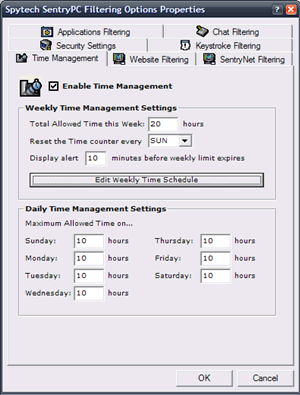
Configuring Time Management
First, to enable Time Management click on 'Enable Time Management' in the Time Management options page. Time Management's settings are configured as follows :
- Total time allowed this week
This controls how many hours the user has to use the computer each week. If this time limit is reached they will be locked out.
- Reset the time counter every …
This is the day of the week that SentryPC will reset its activity usage counters back to 'zero' and restart its usage count.
- Display alert x minutes before weekly time limit expires
This will alert the user that their total weekly usage is about to expire X minutes before it actually does. Setting this reminder to 0 will turn off the reminder.
- Scheduling block times
Click the 'Edit Weekly Time Schedule' button — a window will appear that lets you quickly select hours for each day that you want blocked. A red block indicates a blocked hour. Click 'Save' to save all hours selected. When a user is on the computer when a blocked hour arrives they will be logged out.
- Display time management settings
You can also specify a max number of hours each day that a user can use the computer. To specify a limit for each day simply fill out each day's maximum allowed time. By entering '24' you would be giving them a unlimited use for that day, assuming no hours are scheduled to be blocked from their use that day. If you specify '2' they can use the computer up to 2 hours total that day.