Using Security Settings
SentryPC has an extensive set of Security Restrictions that can control user access to your computer. These settings are accessible by clicking on 'Configure Security Settings' within the Admin Control Panel.
How it works
SentryPC uses some of its own security restriction techniques, as well as built-in Windows security settings to take access control to the next level for users of your computer. SentryPC can severely restrict what users have access to on your computer (i.e.: disabling the Windows desktop completely), or it can simply disable the Windows Task Manager and Control Panels.
Configuring Security Settings
To enable Security Settings check the checkbox next to every security setting that you wish to enforce for that user. Each restriction is described below :
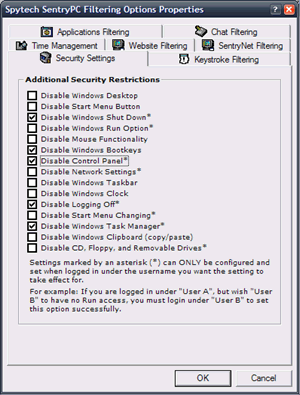
- Disable Windows Desktop
This will disable the Windows Desktop.
- Disable Start Menu Button
This will disable the Windows Start Menu button.
- Disable Windows Shutdown *
This will disable the user's ability to shutdown the computer.
- Disable Windows Run *
This will disable the Run prompt in the Start Menu.
- Disable Mouse Functionality
This will restrict mouse movements to the SentryPC interface window.
- Disable Windows Bootkeys
This will disable common bootkeys that can be used to bypass Windows startup programs and Windows safe mode.
- Disable Control Panel *
This will disable the Windows Control Panel access.
- Disable Network Settings *
This will disable the Windows Network Settings Control Panel access.
- Disable Windows Taskbar
This will disable the Windows Taskbar.
- Disable Windows Clock
This will disable the Windows clock.
- Disable Logoff *
This will disable the ability for the user to log their user off.
- Disable Start Menu Changing *
This will disable the ability for the user to edit the start menu.
- Disable Windows Task Manager *
This will disable the Windows Task Manager.
- Disable Windows Clipboard
This will disable the Windows Clipboard (no copy, cut, and paste abilities).
- Disable CD, Floppy, and Removable Drives *
This will disable the ability for the user to access floppy, cd, and removable drives.
* Some security restrictions, noted by the asterisks above, should only be set when that actual user is logged in.