Using Keyword Filtering
SentryPC offers fully customizable keystroke filtering. When a user types a specific phrase or keyword the program they are working in will be closed immediately. This allows you to keep user's addresses, credit card information, banking information, and other private information safe. This can also be used to actively block undesirable language.
How it works
SentryPC will keep a watchful eye over what users are typing. If they happen to type a specified keyword or phrase SentryPC will immediately close the program they are working in, and alert them, if configured to do so. SentryPC will then create an event log letting you know later that the user tried typing a blocked phrase.
Configuration
First, to enable Keystroke Filtering click on 'Enable Keystroke Filtering' in the Keystroke Filtering options page. Keystroke Filtering's settings are configured as follows :
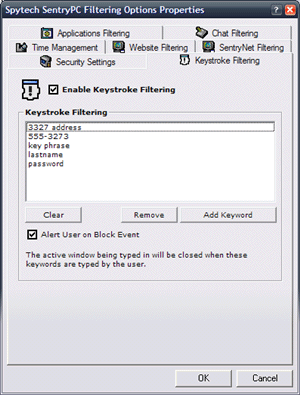
- Adding keywords to block
Click the 'Add Keyword' button — a window will appear to add a Keyword Filter. All that is needed is a keyword or phrase to be blocked, for example, the start of an address, part of a credit card number, a name, etc. When finished, click 'Add' to add the keystroke filter to the list.
- Alert on block event
If you want the user to be given an 'alert' notice stating they triggered a filtered event then check this checkbox.