Getting Started with SentryPC
What SentryPC can do...
SentryPC is a powerful tool that allows you to
- Control how long users use your computer each day/week
- Control when they can use your computer
- Control when users can use specific programs
- Control when users can use specific websites
- Filter and block unwanted programs
- Filter and block unwanted chat clients
- Filter and block unwanted websites
- Filter and block typed keywords
- Monitor and record all user activities - from what they type,
to who they talk to, and what websites they go to
- Protect your Users
How SentryPC works...
SentryPC is extremely easy to use and setup, as explained below,
but a brief explanation of how it works -overall- is required. SentryPC
is based off your Windows user accounts, rather than asking you
to configure multiple accounts just for the software. For example,
if your computer has 4 main users - 2 parents and 2 children, all
4 users will be able to be given their own specific monitoring,
filtering, and access control settings. SentryPC will always run
when the computer is loaded, and it will always run when users login
to their Windows usernames - automatically. The only configurations
YOU have to do is simply apply filters, time schedules, and security
restrictions for each user. For convenience, user settings can be
copied and imported to other users.
In summary:
- SentryPC uses your built-in Windows user accounts you have created
- Each Windows username can be given their own monitoring, filtering,
and access control settings
- SentryPC is always active, and will always run when the computer
is booted - without any configuration from you, the user
SentryPC is built around an easy to use graphical
interface that is explained below.
The SentryPC Interface
The SentryPC interface is broken up into two components.
The main Central Command window
This window is the main interface that all users will see when
they login to their Windows username. If they are not an admin they
can only minimize or restore the user interface - everything else
requires the admin password.

Open Admin Panel: This opens the SentryPC Admin
Control Panel (explained below)
Admin Commands: This will summon a menu that
lets you lock the computer, unlock it, give the user temporary
full computer access, restore access to SentryPC's restricted
settings, or to reset the time management counters. This menu
is explained in detail under the Admin
Commands help item.
Shutdown: This will close SentryPC completely.
It will restart when the next user logs in under Windows, or when
the computer is restarted.
Help: This displays SentryPC's help documentation
Switch to Minimized Interface: This will minimize
SentryPC into a smaller window for convenience.
Current User: The currently logged in Windows
user
Time Used this Week: This is how long the current
user has used the computer this week and day (week / day format).
Time Left this Week: This is how much computer
usage time the current has left this week. Once this time runs
out they will be completely locked out from using their username.
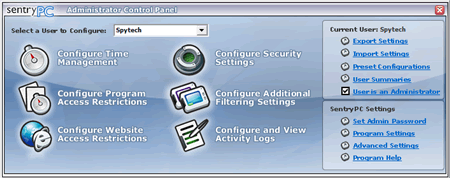
The Admin Control Panel
This window is where all of SentryPC's configuration and setting
changes take place. To start configuring a user, select them from
the drop down list and click on each of the appropriate settings
categories, explained below.

Configure Time Management: This is where you
will configure time restrictions and schedules for the selected
user.
Configure Program Access Restrictions: This
is where you will configure what programs SentryPC will block,
and what programs can run, and when.
Configure Website Restrictions: This is where
you will configure what websites the user can visit.
Configure Security Settings: This is where you
will enable specific security restrictions to Windows - such as
disabling the start menu or desktop.
Configure Additional Filtering Settings: This
is where you will configure what chat clients SentryPC will block,
and what keystroke phrases the user cannot type.
Configure and View Activity Logs: This is where
you will configure SentryPC's activity monitoring, as well as
view logged activities via its built-in log viewers.
Export/Import Settings : This feature allows
you to export user configurations and then import them into other
usernames, effectively allowing you to quickly copy users.
Preset Configurations : This menu quickly enables
security settings for full or basic security, as well as full
or internet monitoring.
User is an Administrator: Check this checkbox
if you want this user to be a SentryPC admin. This means they
will not have to use a password to access the Admin Control Panel,
Admin Commands menu, or Shutdown. Use caution with this checkbox!
Set Admin Password: This is where you will set/change
your admin password.
User Summaries: This menu allows you to prepare
sleek, easy to follow reports for the users settings, overall
usage, and activity monitoring.
Program Settings: These settings allow you to
configure basic program settings, as well as a Startup message
for all users.
Advanced Settings: This is where you can configure
SentryPC's hotkey, its activity log storage location, and thread
priority settings.
Setting up your SentryPC Admin Password
When you first run SentryPC you will be asked to configure your
admin password, and password hint. This password is used to control
access to the Admin Control Panel, Admin Commands menu, and the
SentryPC Shutdown features. If you need to change or reset your
password you can do so by clicking on 'Set Admin Password' within
the Admin Control Panel.
Accessing SentryPC's Admin Control Panel
To access the SentryPC's Admin Control Panel just click on the 'Open
Admin Panel' button on the SentryPC interface. If the user currently
active within Windows is set as a SentryPC administrator then no
password will needed to access this control panel, otherwise a password
will be required by the user.
Configuring User Settings
Once you are in the Admin Control Panel you can configure settings
for each Windows user account. First, select a user from the drop
down selection list. When you select a user it will be updated in
the 'Current User:' text field on the Admin Control Panel interface.
Once the appropriate user is selected click on one of the six action
icons - such as 'Configure Time Management', 'Configure Security
Settings', and so forth. You will then be able to setup the features
you require for each user. Settings will automatically apply when
the Admin Control Panel is closed.
To setup users quickly, click on 'Quick User Configuration' under
the 'Program Help' item in the Admin Control Panel.
SentryPC Shutdown
To close SentryPC completely simply click on 'Shutdown' on the SentryPC
main interface. This is password protected for all non-admins.
|