Export and Import Settings
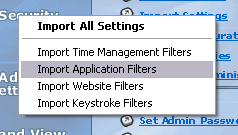
SentryPC has the ability to save settings and import them later to other users. To save settings, you would use the 'Export' menu in the Admin Control Panel. To import settings you previously saved, you would use the 'Import' menu.
You may want to use similar filters and settings on more than one username. To do this use the 'Export' menu in the Admin Control Panel. You can export all settings, or individual filters. Once you export settings, you can switch users by selecting a new username from the drop down user selection list. Now that a new user is selected use the 'Import' menu to import the settings that you just saved previously.
- Click Export and select an export action.
- In case of a single filter export, specify the name of the file to save the settings file as. In the case of exporting 'all settings', select a directory to store the settings in.
- Select a new user from the user drop down list.
- Click Import and select an import action.
- In case of a single filter import, just select the individual filter file you want to import. In case of 'all settings' select the directory that is in the format 'Username-SPCSettings'. This folder is located in the directory location you chose in step 2 of exporting.
- You have copied settings from one user to another.
Importing and Exporting All Settings
When you use the export 'All Settings' command you will be asked to specify a folder to save your settings to, rather than an individual file like the other export/import commands. When you export all settings a sub folder will be created in the directory you select for that specific username you are exporting settings from.
When you want to import 'all settings' simply select the directory that matches the name of the user you want to copy the settings from.
For example : If you export Tom's settings, a folder named 'Tom-SPCSettings' will be created in the folder you choose. To import these settings, simply select 'Tom-SPCSettings' from the directory selection window. All settings will automatically be applied to the currently selected user.