Using Admin Commands
SentryPC has a built-in, quick-access menu for SentryPC administrators. This menu is accessible from the main SentryPC interface window, and allows a handful of useful functions, described as follows :
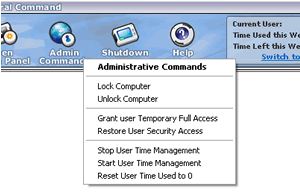
- Lock computer
This command will lock the computer down completely. The desktop will be inaccessible, and mouse movement will be limited to the SentryPC window. This is useful in times when you need to lock access to the computer completely.
- Unlock computer
The counterpart to 'lock computer', this will completely unlock a computer that has been locked by the 'lock computer' command.
- Grant user temporary full access
This function will give the user full access to the computer. This is similar to the 'unlock computer' command, but this command also disables time scheduling, applications filtering, web filtering, and any other security settings that have been configured for the user. SentryPC will stay in this state until the 'Restore User Security Access' command is used, or the computer is rebooted. Useful for times when a parent wants to use a child's account quickly, but does not want to take the time to log on to their own account, for example.
- Restore user security access
This is the counterpart to 'Grant User Temporary Full Access'. This will restart the user's time management and scheduling, application filters, web filters, and any other settings that have been configured for them.
- Stop user time management
This command will halt SentryPC's time counter that keeps track of how long a user has been using the computer.
- Start user time management
This command will start SentryPC's time counter that keeps track of how long a user has been using the computer. It will not reset the time, but simply start counting from wherever it left off last.
- Reset user's time used to 0
This will reset the user's total activity usage time back to 0. The time will still reset when the next reset date is reached.