Using Activity Monitoring
SentryPC, powered by an award-winning activity monitoring engine, is capable of logging what users type, programs they run, how long they use each program, what websites they visit, windows they view, chat client conversations, and finally stores them in easy-to-read built-in log viewers.
How it works
SentryPC features a powerful logging engine that will record and store various activities from keystrokes to website visits. SentryPC records all specified activities in the background without the user knowing they are being monitored (unless you tell them). All logs can be encrypted for security purposes.
Configuration
To enable Activity Monitoring features check the checkbox next to each of the monitoring options, described below. Activity Monitoring settings are accessed by clicking on 'Configure and View Activity Logs' in the Admin Control Panel.
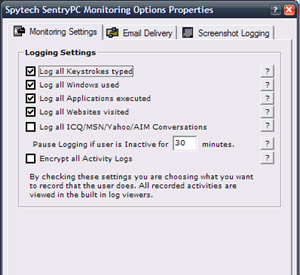
- Log all keystrokes typed
SentryPC will log every single keystroke a user types, including backspaces, line returns, and shifts. Keystroke logs can be formatted for easy viewing (i.e.: backspaces can be removed and applied to see what exactly the user typed). Keystroke logs are logged by the time they occurred, and by the program and window they were typed in (i.e.: in 'top secret document' in notepad.exe at 9:02PM on 08/28/05).
- Log all windows used
SentryPC will log the title of every window the user interacts with, along with the application that owns the window in question. Logs are time stamped.
- Log all applications used
SentryPC will log every program the user runs, by application path and time. SentryPC will also keep track of how long a user actually uses a program. For example, if a user runs a word processor to look like they are doing work, but is secretly playing a game, SentryPC's logs would show the exact amount of time they were actually working, and the exact amount of time they were really playing a game.
- Log all websites visited
SentryPC will log the website address of every website the user visits. Logs are time stamped.
- Log all windows used
SentryPC will log the title of every window the user interacts with, along with the application that owns the window in question. Logs are time stamped.
- Log all conversations
SentryPC will record all chat conversations that take place within ICQ, MSN, Yahoo, AIM, and AOL. Logs are formatted for easy viewing and logged by time.
- Screenshot logging
SentryPC will record screenshots every xxx seconds as you specify. Screenshots can be captured by window only, or the entire desktop can be captured for viewing.
- Encrypt all activity logs
SentryPC will encrypt all logs if this option is checked, specifically so others cannot read the raw logs that are captured by SentryPC.
- Pause logging if user is inactive
SentryPC will stop logging if a user is idle/inactive for a specified number of minutes. Once the user is active again, monitoring will resume where it left off.
Viewing Activity Logs
To view SentryPC's logged activities click on the 'Configure and View Activity Logs' in the Admin Control Panel. You will be given a menu that links to each activity viewer. Each viewer will let you save logs in HTML or TEXT format for later viewing and printing. The log viewers are described below :
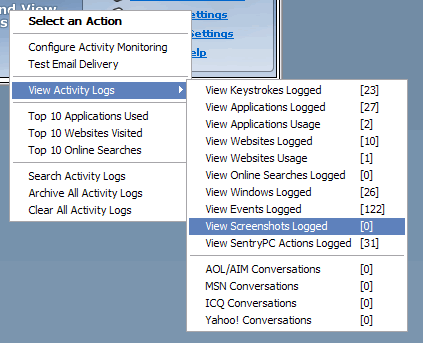
- View keystroke logs
Views all keystrokes the selected user has typed.
- View application logs
Views all applications the selected user has ran.
- View application usage
Views how long the selected user has actively used each program that they have ran.
- View window logs
Views all windows the selected user has interacted with.
- View website logs
Views all websites the selected user has visited.
- View website usage
Views how long the selected user has actively stayed at each website that they have visited.
- View online searches
Views what searches users have performed online through popular search engines.
- View events logged
Views an easy to follow timeline of all of the user's activities, in the order that they performed them.
Clearing Activity Logs
To clear SentryPC's activity logs you can either :
- Use the 'Clear all Activity Logs' item in the 'Configure and View Activity Logs' menu.
- Clear individual logs by clicking on 'Reset' within the actual log viewer for each log type.
Archiving Activity Logs
SentryPC can archive logs for later viewing, reading, and printing. There are two ways this can be done:
- Use the 'Archive all Activity Logs' item in the 'Configure and View Activity Logs' menu, then select a folder to archive the logs to. Logs are archived in HTML format.
- Save individual logs by clicking on 'Save Log' or 'Report' within the actual log viewer for each log type.